
I wanted to share some helpful information that can come in handy while assisting our clients with SMTP relay connection issues.
Sometimes, our clients might encounter difficulties connecting to our SMTP relay due to various reasons, such as firewall restrictions or network configuration problems. In such situations, we can suggest an alternative method to help them troubleshoot the connection.
Troubleshooting with Telnet :
The effective approach is to advise the client to use the Telnet command-line tool to manually test the connection to our SMTP relay server. This process can help them identify whether the issue lies with their network settings or any connectivity problems.
This step is generally shared by our L2 team as well, as a first step troubleshooting process.
I have recorded a short video on how to check if our SMTP relay and the port is open on our client’s server, Kindly see the video here – https://www.loom.com/share/d1c928f7ee92407cb50b62cb827d3d52
Below I have shared the telnet command so that you can test it on your end to:Telnet smtp-relay.sendinblue.com 587Greet the mail server: EHLO smtp-relay@sendinblue.comFor Auth Login, the server should return the following, which is a base64 encoded string that requires your username:334 VXNlcm5hbWU6Paste the base64 encoded username. For example: dXNlcm5hbWUuY29tThe server should return the following, which is a base64 encoded string that requires your password: 334 UGFzc3dvcmQ6Paste the base64 encoded password for the username. For example: bXlwYXNzd29yZ$4
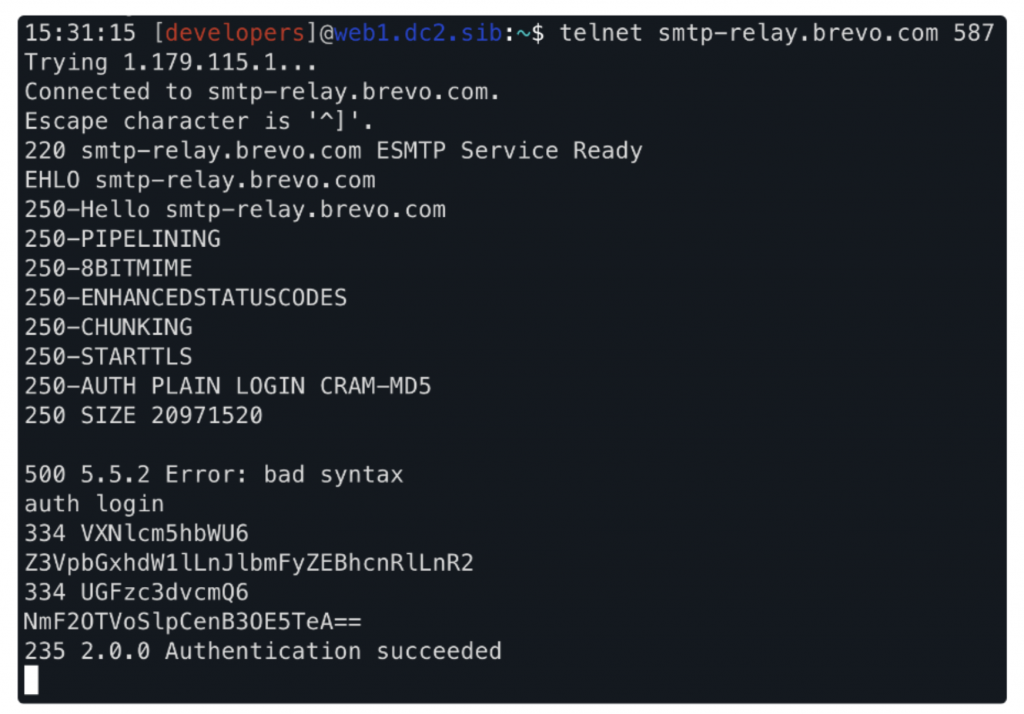
Steps to install telnet through terminal (Here’s the link to the short video recording on how to install telnet):
Some of the devices might not have telnet installed, Thanks to @Kinjal for finding this out. Therefore I have recorded a short video to show how this can be installed.
- Copy and paste the below command directly in the terminal program:
/bin/bash -c "$(curl -fsSL https://raw.githubusercontent.com/Homebrew/install/HEAD/install.sh)"
This will install Homebrew on Mac OS.
(It will need “sudo” access to install the file in the system directory, hence you need to enter your password after running the above command.)
2. Now with the help of homebrew, we can install telnet by running the below command:brew install telnet
3. When installation has complete, you can run Telnet as usual:telnet smtp-relay.sendinblue.com 587
Feel free to share this information with our clients if they encounter SMTP relay connection challenges. If you have any questions or need additional assistance, please do let me know.
Let’s continue to provide the best support to our clients and ensure smooth communication!
Thank you!